Inventory Quality
Part of Programmatic creative delivery
Diagnosing blank or incorrectly rendered ads
Separate an empty placement from a served blank ad, then investigate backups, assets and video-tag faults in the affected context.
First establish whether an ad was selected to serve. An empty placement with no served impression calls for an eligibility or auction check; a served impression that looks blank or distorted calls for a rendering check. Follow the relevant route below, because the distinction determines which evidence to inspect.
Capture the affected context
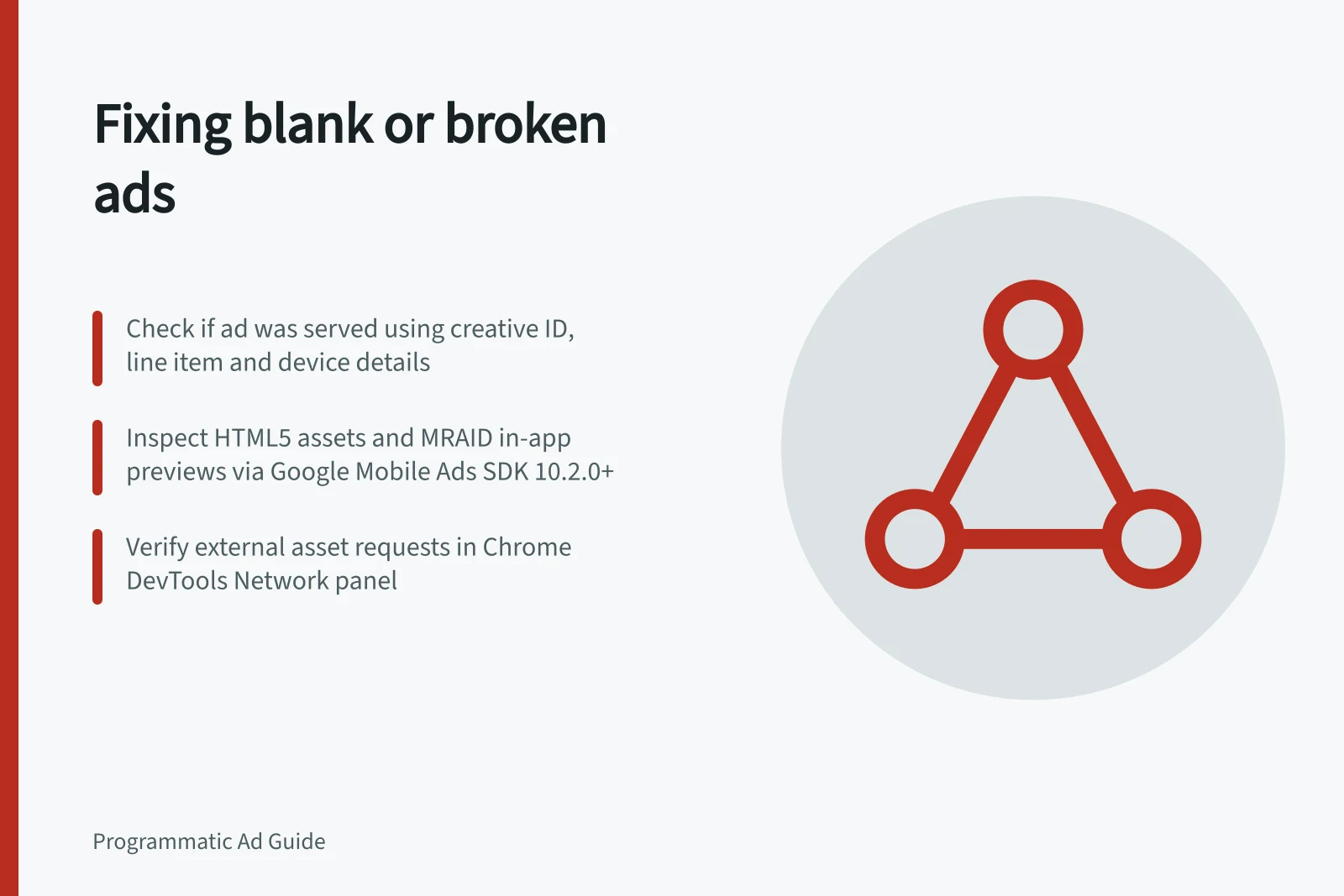
Step 1: Record the creative ID, line item, format, size, page or app, device, browser and time, along with a screenshot or recording. Note whether the issue appears in a platform preview, a live placement or both. If it is intermittent, retain an example that worked in a similar context.
Step 2: If there is no evidence that the creative served, inspect the line item’s delivery path; an empty slot alone does not identify which stage failed. In Display & Video 360 (DV360), use its “Troubleshoot your deals and line items” guidance. For an app using Google Mobile Ads SDK, Ad Manager delivery tools provide ad-serving information; after setup, Ad Manager displays requests and serving details.
Required diagnostic checks for blank or incorrect ad rendering
- Creative IDRecord the unique identifier for the creative.
- Line item detailsNote the line item name, targeting, and delivery settings.
- Page or app contextSpecify the URL or app name where the issue occurred.
- Device and browserRecord the device type (mobile, desktop) and browser (e.g., Chrome, Safari).
- Time of occurrenceNote the date and time the issue appeared.
- Screenshot or recordingCapture visual proof of the blank or distorted ad.
Inspect a served display creative
Step 3: In DV360, use “Preview creatives” to inspect the affected size. Check the text, images, animation and click area, then compare the preview with the reported live placement where possible. A preview can reveal a problem but cannot prove that every publisher layout renders correctly.
For HTML5, check the selected serving size, main asset and backup image. For a mobile app creative with interactive behaviour or MRAID, Google Mobile Ads SDK in-app preview can inspect the creative as rendered in the app. This requires Google Mobile Ads SDK 10.2.0 or later and access to a Google Ad Manager account.
Step 4: In Chrome, open DevTools, select the Network panel and reload the affected page; DevTools logs activity only while it is open. Look for requests for the creative’s external assets, then inspect each resource’s HTTP status, type, initiator, size and time. Select a resource to check its HTTP headers and content; if an expected asset request is absent from the log, record that it was not captured.
Key metrics and tools for ad rendering diagnostics
- DV360 Preview Tool
- Use to inspect creatives before launch; supports HTML5 and interactive formats.
- Chrome DevTools Network Panel
- Logs asset requests; essential for identifying missing or failed resources.
- VAST Tag Response Testing
- Test media playback directly in the player to validate video functionality.
Pros and cons of using platform previews vs live environments
- Platform Previews (e.g., DV360 Preview)Pros: Fast feedback, safe testing environment. Cons: May not reflect real-world publisher layouts or rendering quirks.
- Live Placement TestingPros: Accurate representation of user experience. Cons: Harder to reproduce and debug without proper logging.
Check video separately
Step 5: For a third-party VAST tag, inspect the response and test whether the media plays in the relevant player. Record what the response shows and whether playback succeeds; involve the ad server or vendor if you need help interpreting the response.
Recheck the affected route
Make the correction supported by the evidence, such as fixing a dimension, supplying a backup, repairing an asset request or correcting a VAST tag. If the platform requires renewed creative review, check its status.
Then verify the same size, device and placement context that showed the fault. Until that later check happens, record the correction as submitted rather than resolved.