Measurement
Part of Programmatic conversion tracking
Testing a conversion event after a DSP tag update
Check the completion journey, event payload, platform receipt and reporting after a DSP conversion tag changes.
After a DSP tag update, complete a controlled action and inspect the event sent from the site before relying on a conversion report. Tag firing, event receipt and conversion credit are separate observations. Record each result.
Set the expected result
Agree on the event ID, completion trigger, counting method and required fields. For a purchase, specify when the order is complete and which transaction ID and value should be sent. For an enquiry, specify the successful submission state.
Record the tag change, deployment time, affected routes and owners.
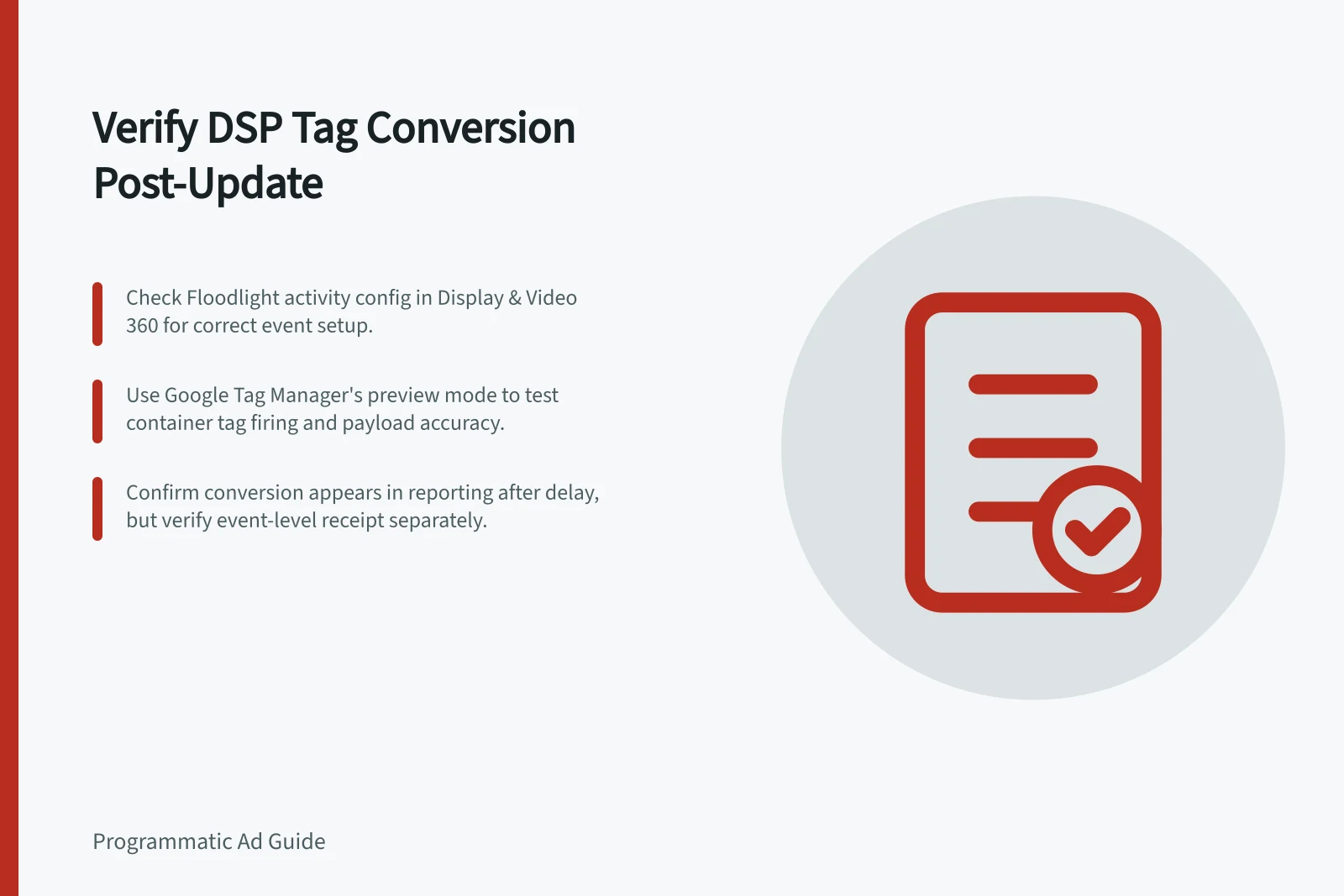
In Display & Video 360, check the Floodlight activity configuration that applies to the event.
Test the customer journey
Where possible, use a test environment or an identifiable authorised test transaction, and decide how its business record will be handled. Follow the real completion path, including redirects. Check that the intended completion sends the expected event and that a non-completion path does not send it.
Inspect the ID, transaction ID and value where applicable; a generic ‘tag fired’ indication is insufficient.
For a web container managed in Google Tag Manager, use preview and debug mode to test the container. A direct implementation or another DSP needs its own request and diagnostic checks.
| Observation | What it establishes | Next check |
|---|---|---|
| No expected event request | The event was not observed in this journey | Deployment, trigger and consent path |
| Request with wrong ID or fields | A payload was sent, but it does not match the specification | Tag mapping and source data |
| Correct request | This journey sent the intended payload | Platform receipt |
| Conversion appears in reporting | A conversion appears in the report; this does not by itself confirm event-level receipt | Line-item settings and attributed reporting |
Check platform evidence and reporting
Campaign Manager 360 provides Floodlight tag troubleshooting and implementation alerts. Review them for the changed tag; an absent alert is not proof that the event was received or correct.
Check the Display & Video 360 line item settings that apply to conversion counting. In reporting, inspect conversion data for the relevant line item after allowing for reporting delay; record this as reporting evidence, not event-level receipt. Keep the request, any platform evidence and report cut-off separate.
Mark the release verified only for the routes and fields checked. If a check fails, correct the affected implementation and repeat the same journey. Recheck when a later site release changes the action path.
Event Observation vs. Reporting Evidence
- Observation: No expected event requestThe event was not observed — check deployment, trigger, and consent path
- Observation: Request with wrong ID or fieldsPayload sent but incorrect — review tag mapping and source data
- Observation: Correct requestIntended payload sent — verify platform receipt
- Observation: Conversion appears in reportingReporting shows conversion, but does not confirm event-level receipt — validate line-item settings and attribution