Measurement
Programmatic conversion tracking
Define conversion events, check implementation and counting rules, and interpret attributed DSP results alongside business records.
Programmatic conversion tracking records a defined action, such as a completed purchase or enquiry, and reports it against eligible ad interactions under a platform’s attribution rules. Define the action and counting method, confirm the event is sent, then read the attributed result alongside the business record. Attribution does not prove the ad caused the action.
Define the action
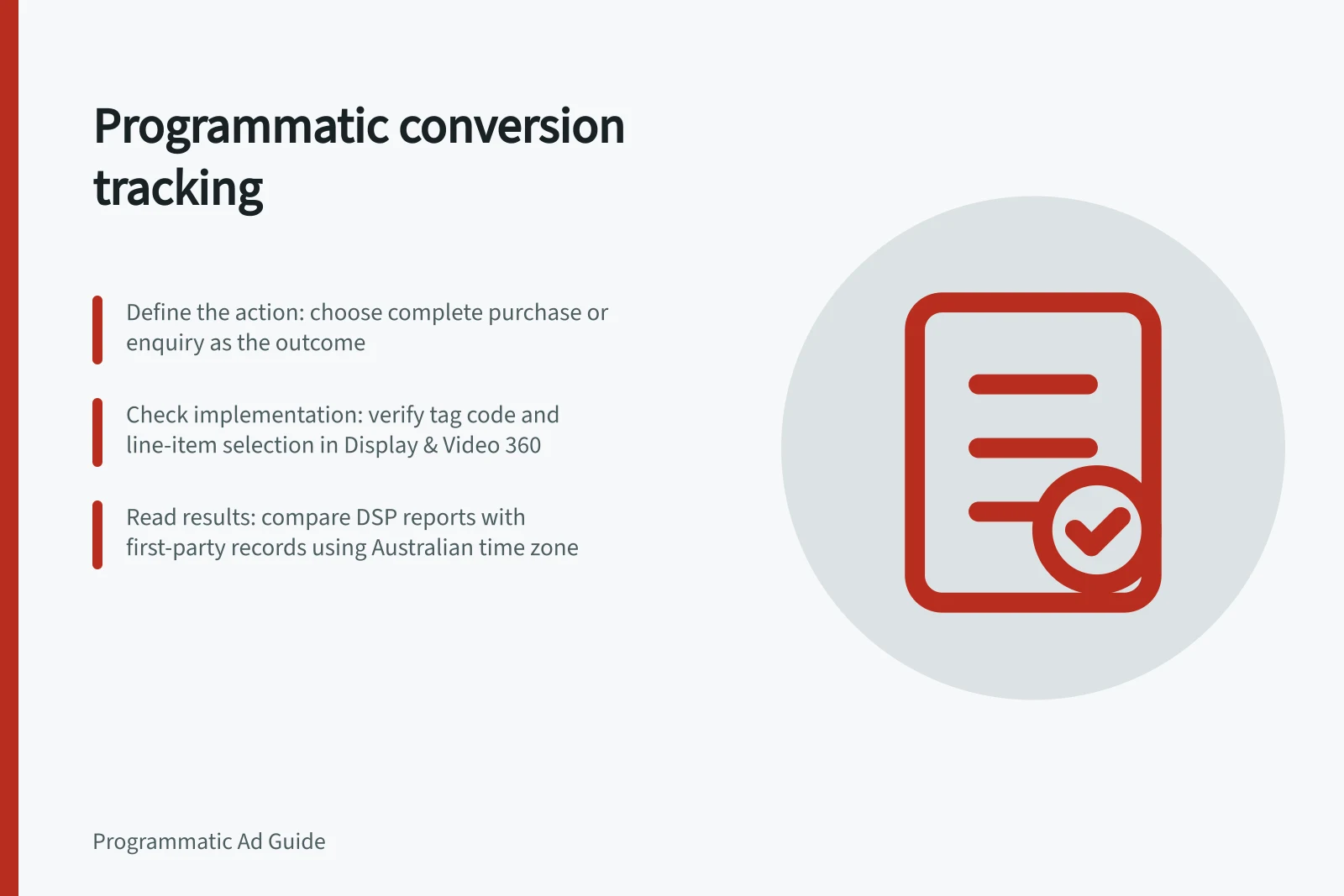
Choose the point at which the outcome is complete. A purchase confirmation differs from a checkout visit; a submitted enquiry differs from a form start. Give each event a clear name, owner and trigger. If early actions are useful, track them separately from the completed outcome and identify which event guides bidding.
Decide how repeat actions should count. Google Floodlight offers different methods: its standard counter counts every conversion, while its unique counter counts the first per user in each 24-hour day and its per-session counter counts one per user per session. Sales activities have transaction and items-sold methods. Check the activity configured in the account before comparing totals or choosing a bidding signal.
| Decision | Record before launch |
|---|---|
| Business outcome | Completed action and first-party system of record |
| Event | Activity ID, trigger, owner and any value or transaction ID sent |
| Counting | Method and treatment of genuine repeat actions |
| Attribution | Eligible interactions, windows and model |
| Reporting | Included line items, metric, date basis, currency and named time zone |
Floodlight Conversion Counting Methods in Display & Video 360
- Standard Counter
- Counts every conversion
- Unique Counter
- Counts first conversion per user in each 24-hour day
- Per-Session Counter
- Counts one per user per session
Pre-Launch Checklist for Conversion Tracking
- Business outcome definedCompleted action recorded in first-party system (e.g., order confirmation)
- Event ID and trigger confirmedClear naming, owner, and technical trigger setup
- Counting method selectedStandard, unique, per-session, or transaction-based
- Attribution window setPost-click and post-view windows aligned with business goals
- Reporting timezone specifiedAustralian Eastern Time (AEST) or AEDT for consistency
Check implementation and selection
For a website Floodlight activity in Display & Video 360, the activity setup generates tag code to add to your site or app. A line item must also select the activity it uses to count conversions. Check both the site event and the saved line-item selection.
Run an authorised completion journey and check that the expected event is sent with the relevant fields. Then check whether the platform received the event. A request from a test journey may produce no attributed DSP conversion if no eligible ad interaction preceded it. A reported conversion, in turn, does not prove the event represents the intended business outcome. Repeat the check after relevant tag, checkout, form or consent-flow changes.
Steps to Implement Programmatic Conversion Tracking
- Create a Floodlight activity in Display & Video 360Define the event, trigger and counting method
- Generate and place the tag code on your website or appUse Google tag (recommended) for best compatibility
- Assign the Floodlight activity to a line itemEnsure the line item is set to count conversions
- Test the journey with authorised completionVerify event is sent and received by DSP
- Confirm attribution rules and reporting settingsCheck time zone, currency, date basis and windows
Separate counting from attribution
Repeated event records can affect totals. Duplicate handling depends on the platform’s rules.
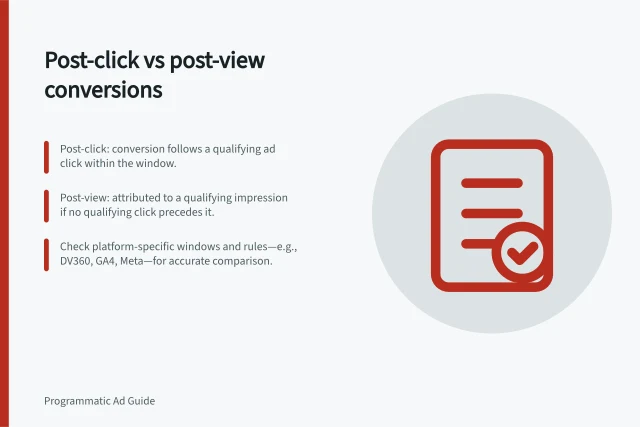
In Display & Video 360, selected Floodlight activities, line-item counting choices and post-click and post-view windows affect the reported total. When Campaign Manager 360 also sets a window, the shorter applicable window governs.
Under Floodlight’s click-through and view-through classification, an eligible click takes precedence over an eligible impression for the same conversion. These settings assign reporting credit; they do not count every order the business received.
Choose a tag format
Display & Video 360 recommends the Google tag for Floodlight activities on websites. It is JavaScript placed on every page, while iframe and image tags are added only to pages with tracked events. The iframe option is for cases where the Google tag cannot be adopted; the image option is for cases where neither the Google tag nor an iframe tag can be adopted.
An activity is created for each event to track, and its format, type and counting method are selected during setup. Floodlight attribution must also be enabled for the activity; if it is disabled, attribution stops for that activity. If Campaign Manager 360 serves the ads, its Floodlight settings manage the activities.
Pros and Cons of Tag Formats for Floodlight Activities
- Google Tag (JavaScript)
- Recommended; works across all pages; easy to manage
- Iframe Tag
- Use when Google tag cannot be adopted; limited support
- Image Tag
- Fallback option when other tags are blocked; least reliable
Understand the line-item choice
A line item can count all post-click and post-view conversions, only post-click conversions, or all post-click conversions plus a selected percentage of post-view conversions. If multiple Floodlight activities are selected, the reported count is the sum of the conversions counted by those activities.
Not every line item has to count conversions. For example, a line item may have no Floodlight activity selected when conversion counting is not required for it. Record which activities and conversion-counting option are saved for each line item, because these choices determine which events contribute to its total.
Read conversion-window settings
In Display & Video 360, a post-click or post-view window set to zero days counts events within 24 hours; one day covers 48 hours and two days covers 72 hours. Changing a window affects how conversions are counted from that point onwards, based on flight dates, and does not change conversions counted before the change.
Interpret the result
Compare the DSP report with first-party purchases or enquiries for the same defined action and period, but label the populations separately. The business system can include actions with no eligible measured ad interaction. DSP reporting can also change as later conversions arrive or data is processed. Investigate differences in event definition, counting, attribution, dates and freshness before drawing a conclusion.
For Australian campaigns, name the reporting time zone. Align timestamps when the DSP and order system use different daily cut-offs.
Allow for reporting delays when deciding whether a result is mature. Display & Video 360 updates conversion data roughly every six hours and cross-environment conversion data every 24 hours; impression and click data is updated every three to four hours. Additional data can arrive later during processing, with Display & Video 360 able to update data for up to 31 days.
In this guide
- Testing a conversion event after a DSP tag updateCheck the completion journey, event payload, platform receipt and reporting after a DSP conversion tag changes.
- Separating duplicate conversions from repeat purchasesUse transaction IDs, order status, event paths and counting methods to distinguish repeated records from genuine new purchases.
- Reconciling DSP conversions with first-party recordsAlign events, periods, attribution rules and report metrics before explaining gaps between DSP and first-party results.
- Handling delayed conversions in optimisation decisionsCompare conversion periods at equal maturity and keep recent results provisional before changing programmatic bids or budgets.